Anki: Spaced-Repetition Flashcards
Anki is a free, open-source flashcard app built on spaced repetition: it shows each card just before you would forget it, so review time goes where it is needed. This guide walks through installing Anki, importing two ready-made Sanskrit decks, and adding HyperTTS, a text-to-speech add-on, so the cards can read the Sanskrit aloud. The video above covers the same steps in Thai.
1. Download and install
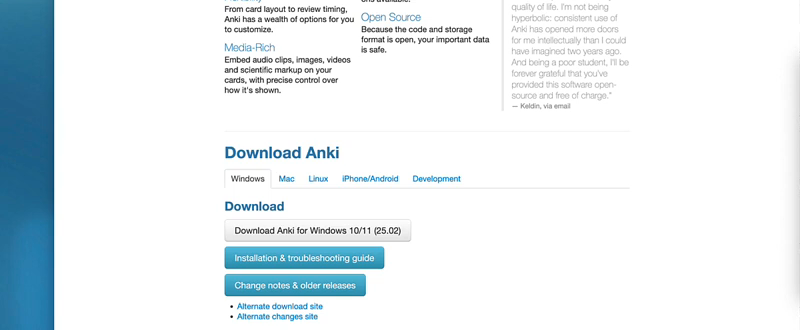
Download Anki for your platform from the official site, apps.ankiweb.net. The desktop app is free on Windows, macOS and Linux; AnkiDroid (Android) is free, and AnkiMobile (iOS) is a paid companion. Install and open it — a fresh install starts with a single empty Default deck.
If you want your progress to sync across devices, create a free AnkiWeb account and sign in from the Sync button in the top bar.
2. Import the Sanskrit decks
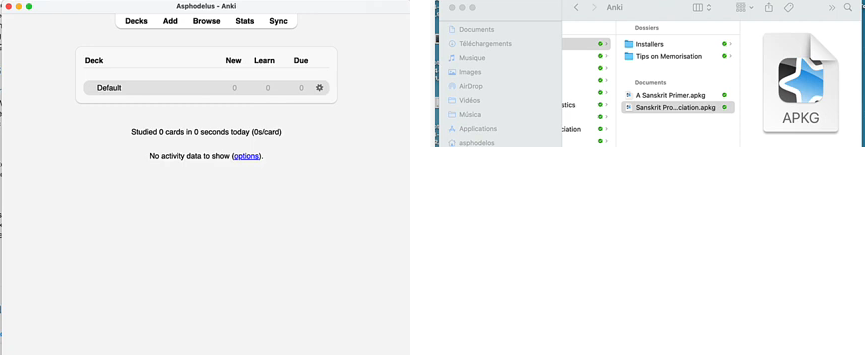
This guide uses two decks: A Sanskrit Primer (vocabulary and grammar, built around Perry's classic A Sanskrit Primer) and Sanskrit Pronunciation (a pronunciation-focused deck). Download the .apkg files — A Sanskrit Primer.apkg and Sanskrit Pronunciation.apkg — and save them to your computer.
In Anki, choose File ▸ Import (or simply double-click a .apkg file) and select it — repeat for the second deck. Each one appears in your deck list, ready to study.
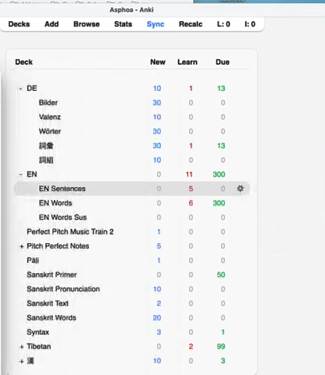
Once both are imported, your deck list shows Sanskrit Primer and Sanskrit Pronunciation alongside any other decks you already have.
3. Install the HyperTTS add-on
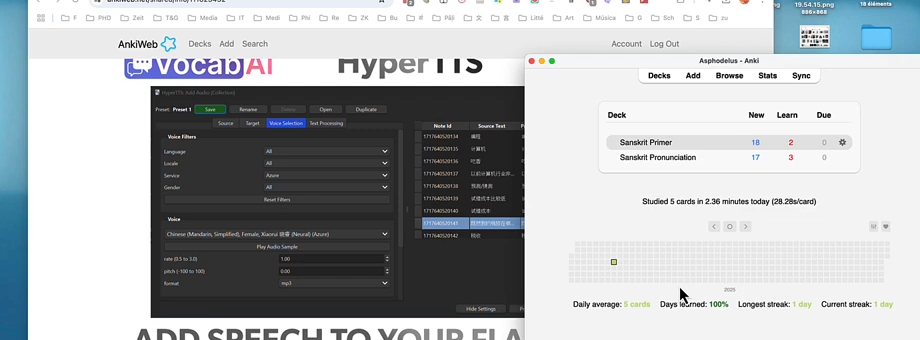
Anki reads text aloud through an add-on. HyperTTS — made by the same developer as the well-known AwesomeTTS — is a good choice: it speaks through cloud voice services (Google Cloud, Microsoft Azure, Amazon Polly, Forvo, Naver and others), several of which offer a free tier.
Go to Tools ▸ Add-ons ▸ Get Add-ons…, paste in this code, and click OK:
111623432
Restart Anki when it asks. (If the code ever changes, search "HyperTTS" on ankiweb.net/shared/addons instead.)
4. Configure a voice and add audio
Open a card in the Browse window, select the field with the Sanskrit word, and launch HyperTTS's Add Audio panel. Pick a Service (e.g. Azure or Google Cloud) and a Voice — Devanagari- or Sanskrit-specific voices are rare, so you may need to experiment; some learners get usable results from a Hindi voice as an approximation. Preview with Play Audio Sample, then apply it to generate audio for the deck.
5. Bonus: personalize your workload with AnkiMorphs
The video also sets up AnkiMorphs, a companion add-on that reorders and paces cards by how well-known and how important each word is — handy for keeping your daily new-card and review counts realistic. Install it the same way, with code:
472573498
Then tune Daily Limits, New Cards and Lapses (including when a card should be suspended) from the deck's Options.
6. Study
With everything set up, click Study Now, rate how well you recalled each card (Again / Hard / Good / Easy), and Anki schedules the next review for you. Every day, do the cards it puts in front of you.
That's it — you now have a Sanskrit deck that reviews itself on the optimal schedule and reads each word aloud. For more, see the Anki manual. The site's own Word bank is an online counterpart if you prefer to study in the browser.