GoldenDict: Offline Sanskrit Dictionaries
GoldenDict is a free, open-source offline dictionary reader. Once it is set up, you can select any word in any app and instantly see its entry from a whole shelf of Sanskrit dictionaries, side by side. This guide walks through installing it, loading the dictionaries, grouping them by language, and wiring up the one-key lookup that makes it so fast. The video above covers the same steps in Thai.
1. Download
- The program — download GoldenDict-ng from its GitHub page: github.com/xiaoyifang/goldendict-ng.
- The Sanskrit dictionaries — a ready-made bundle is here: Dropbox folder. (You can also download the site's own MDX dictionaries from the Dictionaries page.)
- The project wiki — xiaoyifang.github.io/goldendict-ng — is where to look when you need an answer or a solution.
2. Install and organise
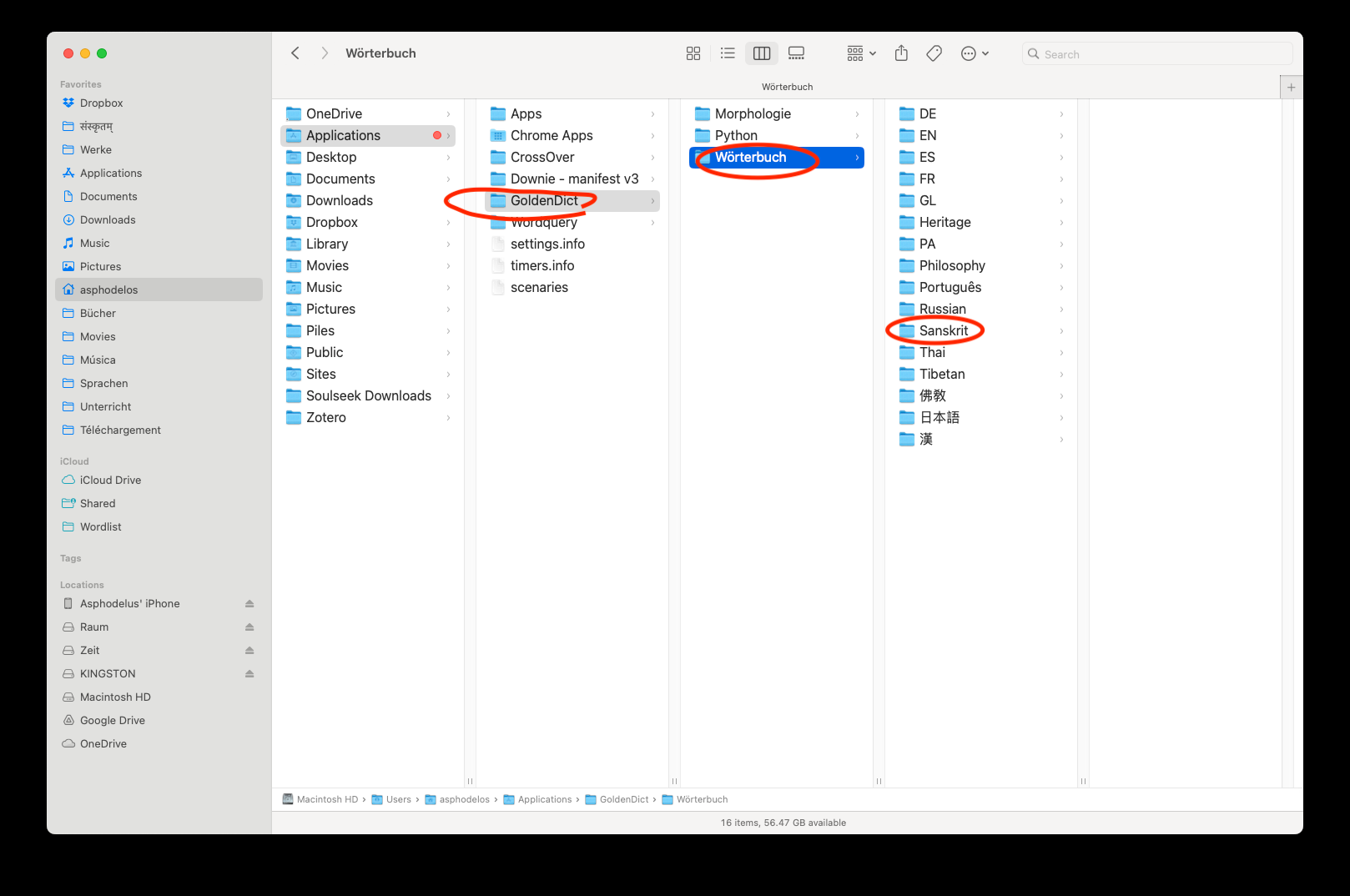
Install the downloaded program on your platform. Then put the dictionary files somewhere on your hard disk. It pays to keep them in a single folder with one subfolder per language — for example a Wörterbuch folder holding Sanskrit, Thai, Tibetan, EN, DE… subfolders.
3. Add the dictionaries into GoldenDict
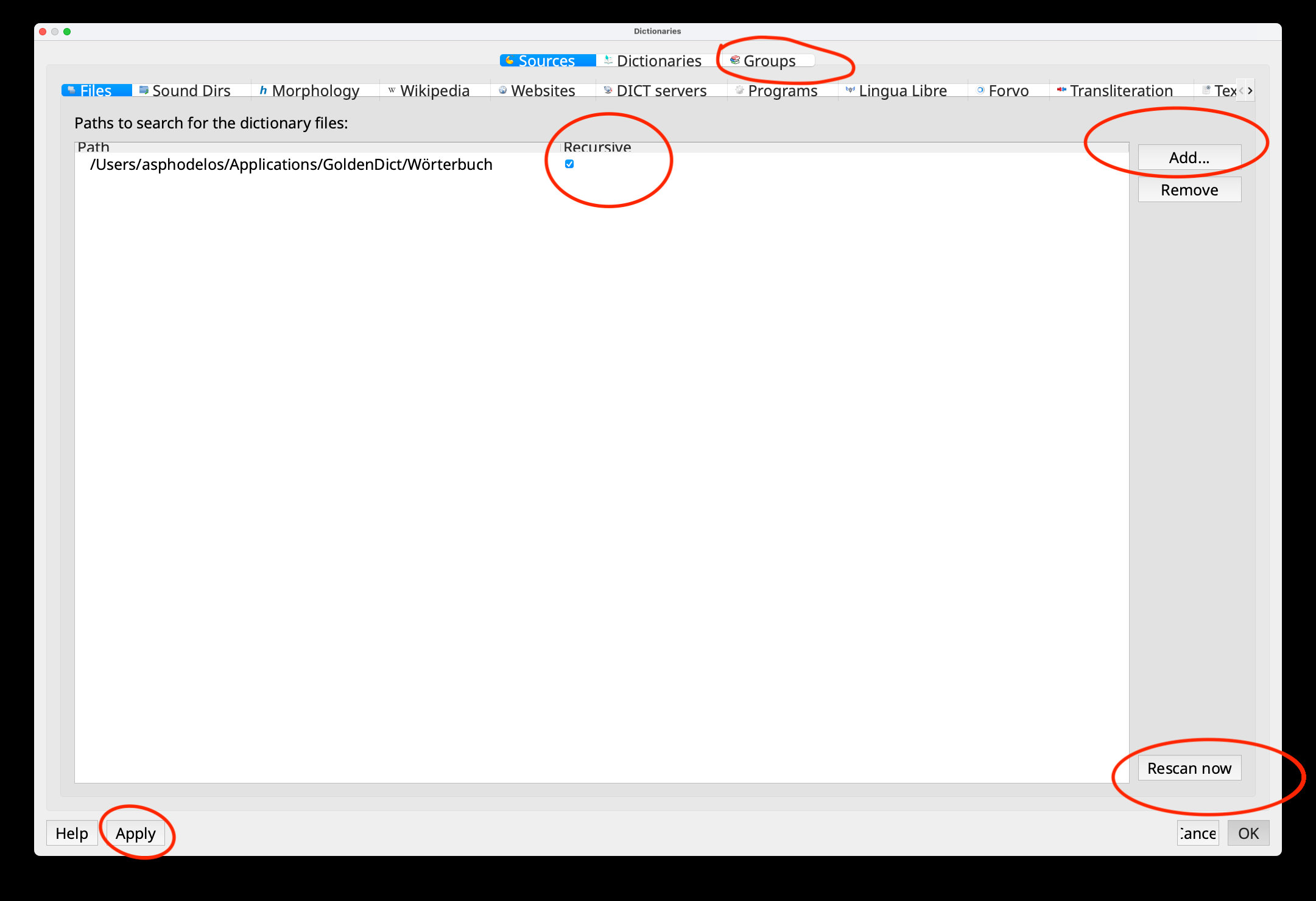
In GoldenDict, go to Edit ▸ Dictionaries. In the pop-up panel, under Sources ▸ Files, click Add and choose the folder where you keep all the dictionary files. Tick Recursive — this includes every subfolder, which is what lets you keep each language in its own subfolder. When GoldenDict finishes scanning, click Apply, or go to Groups if you want to split the dictionaries by language.
4. Arrange the language groups
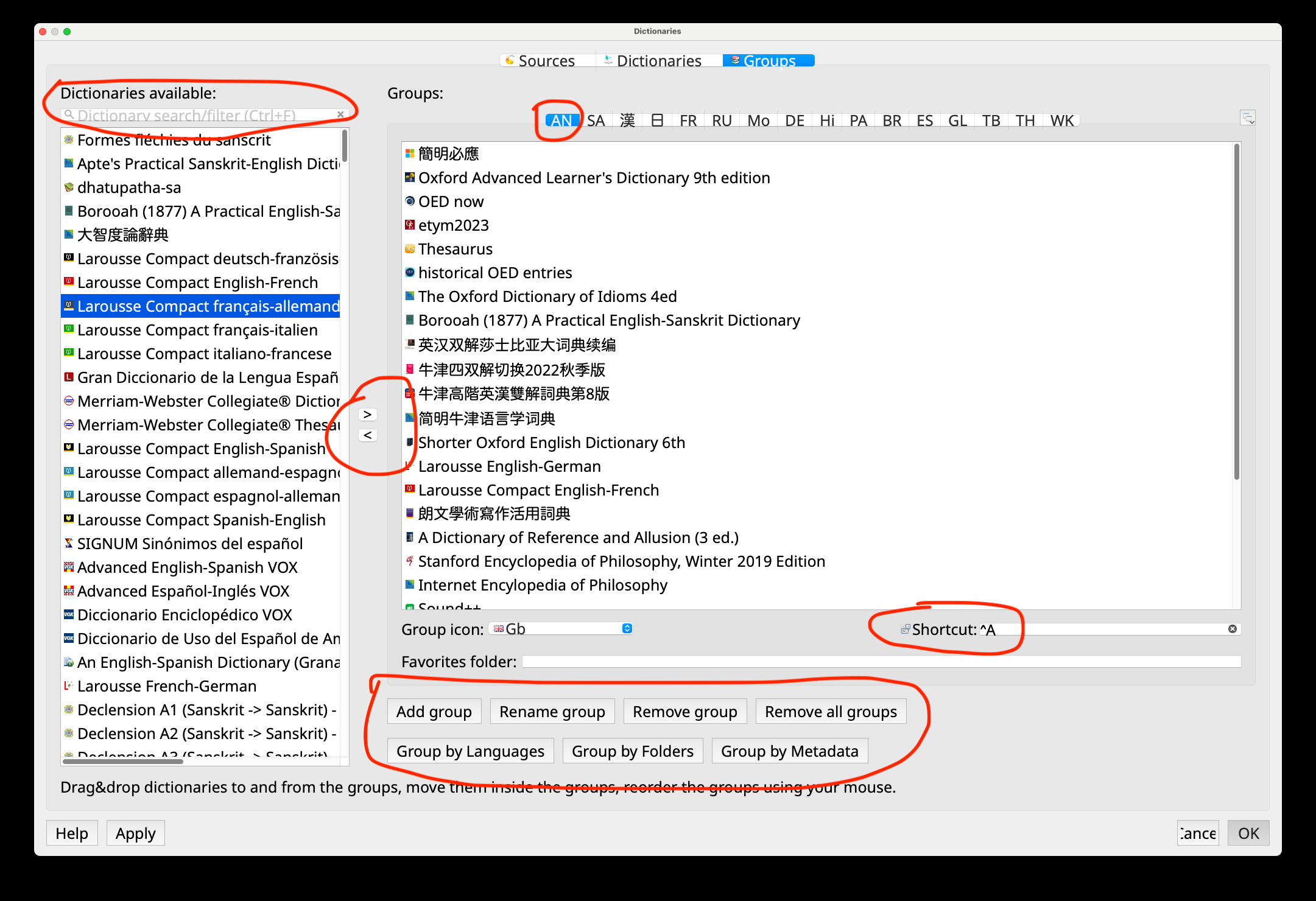
Open the Groups tab. The > and < buttons move the selected dictionary from the list on the left into — or out of — the language group on the right. If you have a lot of dictionaries installed, search by name in the upper-left search box. You can add new groups and give each one a keyboard shortcut for the main window (for instance ^A for the Sanskrit group).
5. Preferences
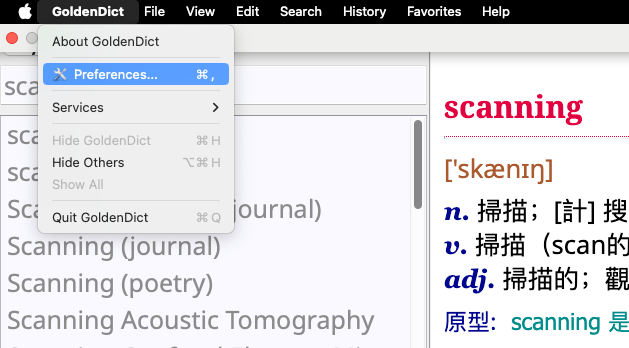
Go to GoldenDict ▸ Preferences (or the equivalent if you use Windows or Linux).
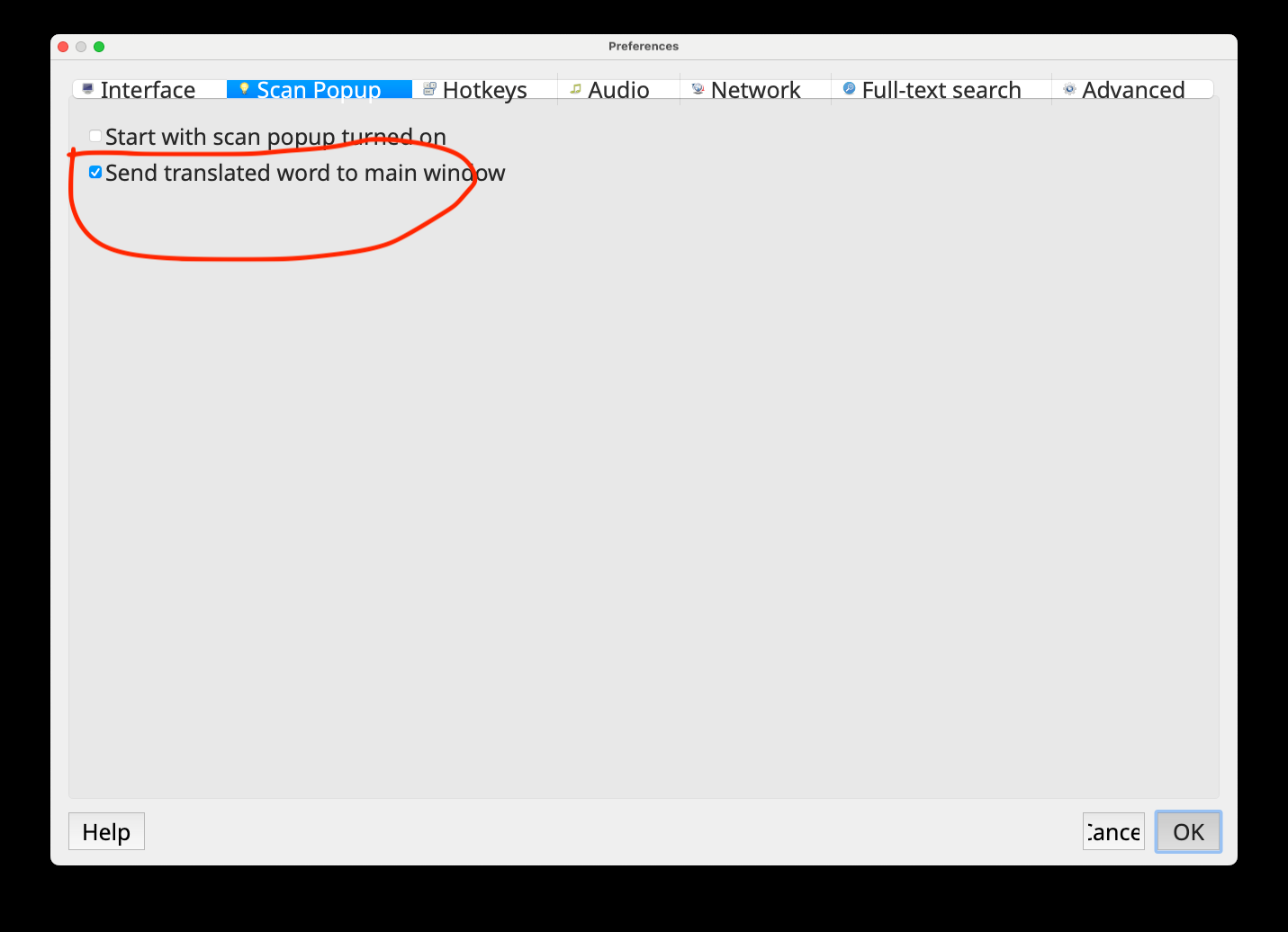
Under Scan Popup, tick "Send translated word to main window." This single option makes look-ups trouble-free even from apps running full-screen on macOS.
6. The one-key look-up — the best part
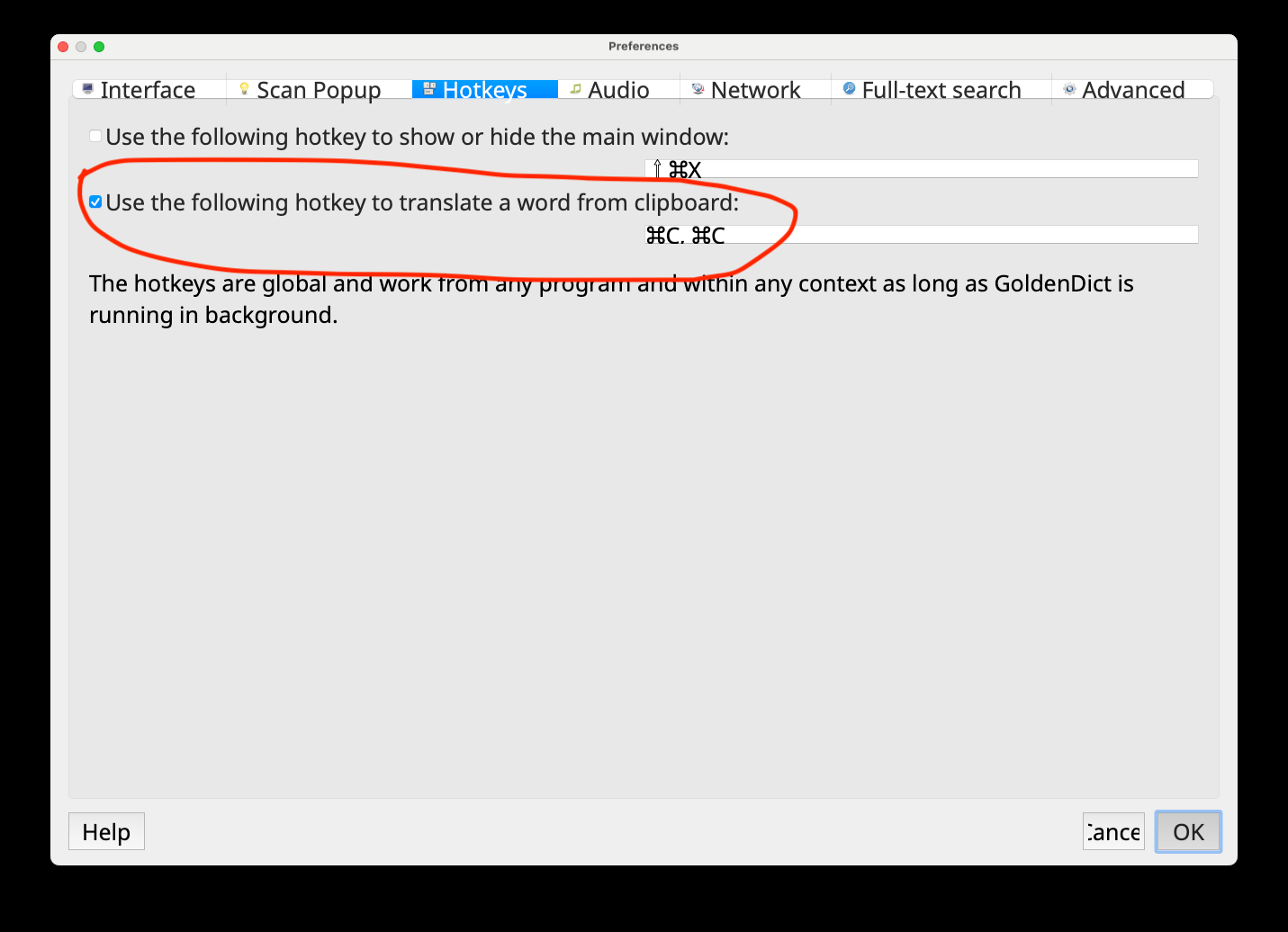
Here comes the best of GoldenDict. Under Hotkeys, set the "translate a word from clipboard" hotkey to a double tap: hold ⌘ (macOS) or Ctrl (Windows) and press C twice — "⌘C, ⌘C". Now, in any program, select a word and double-tap that combination, and GoldenDict returns every entry from the dictionaries in the current group. The hotkeys are global: they work from any program, as long as GoldenDict is running in the background.
That's it — you can start using it now. For more, browse Preferences, check the Help menu, and the wiki above. Have fun!
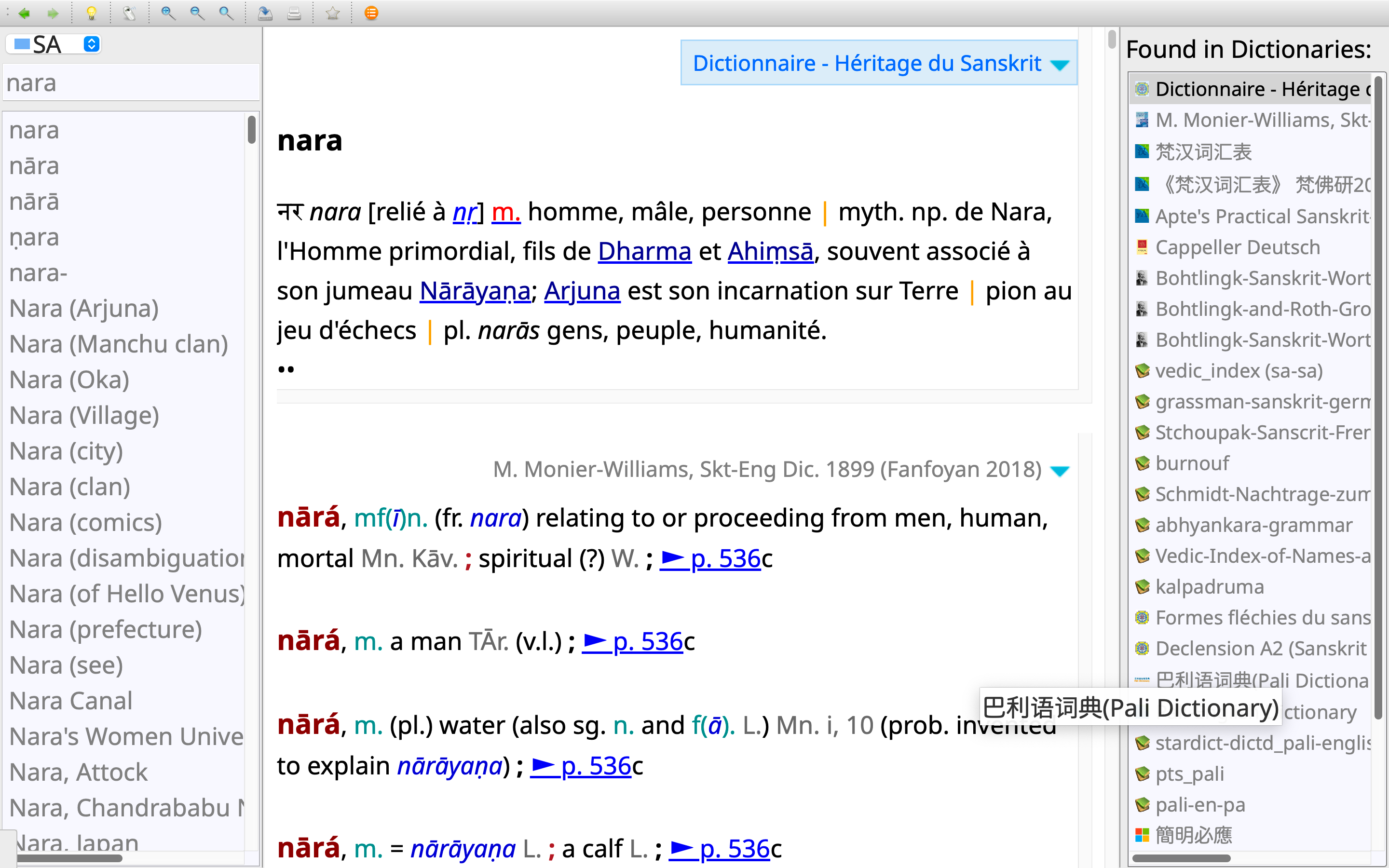
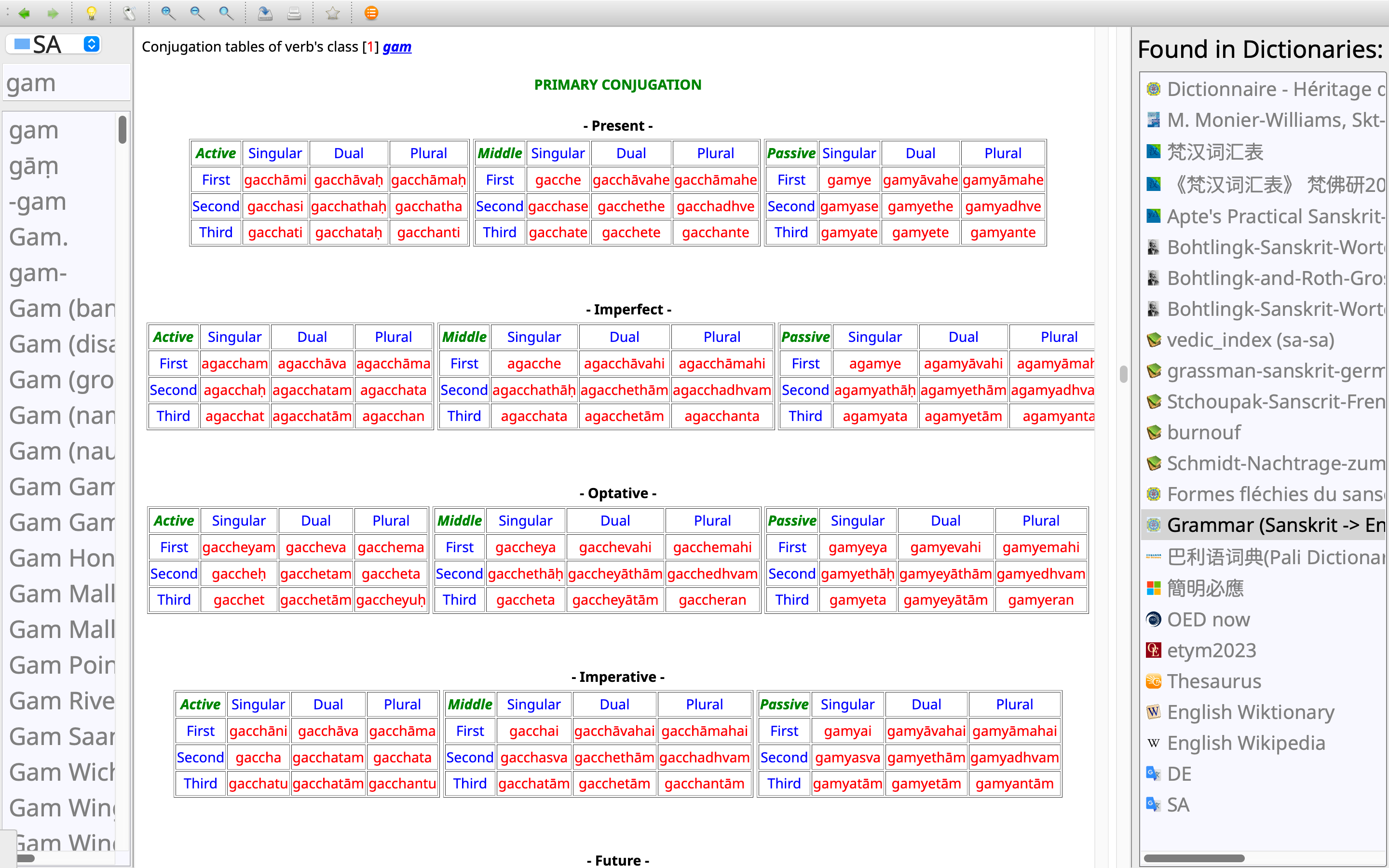
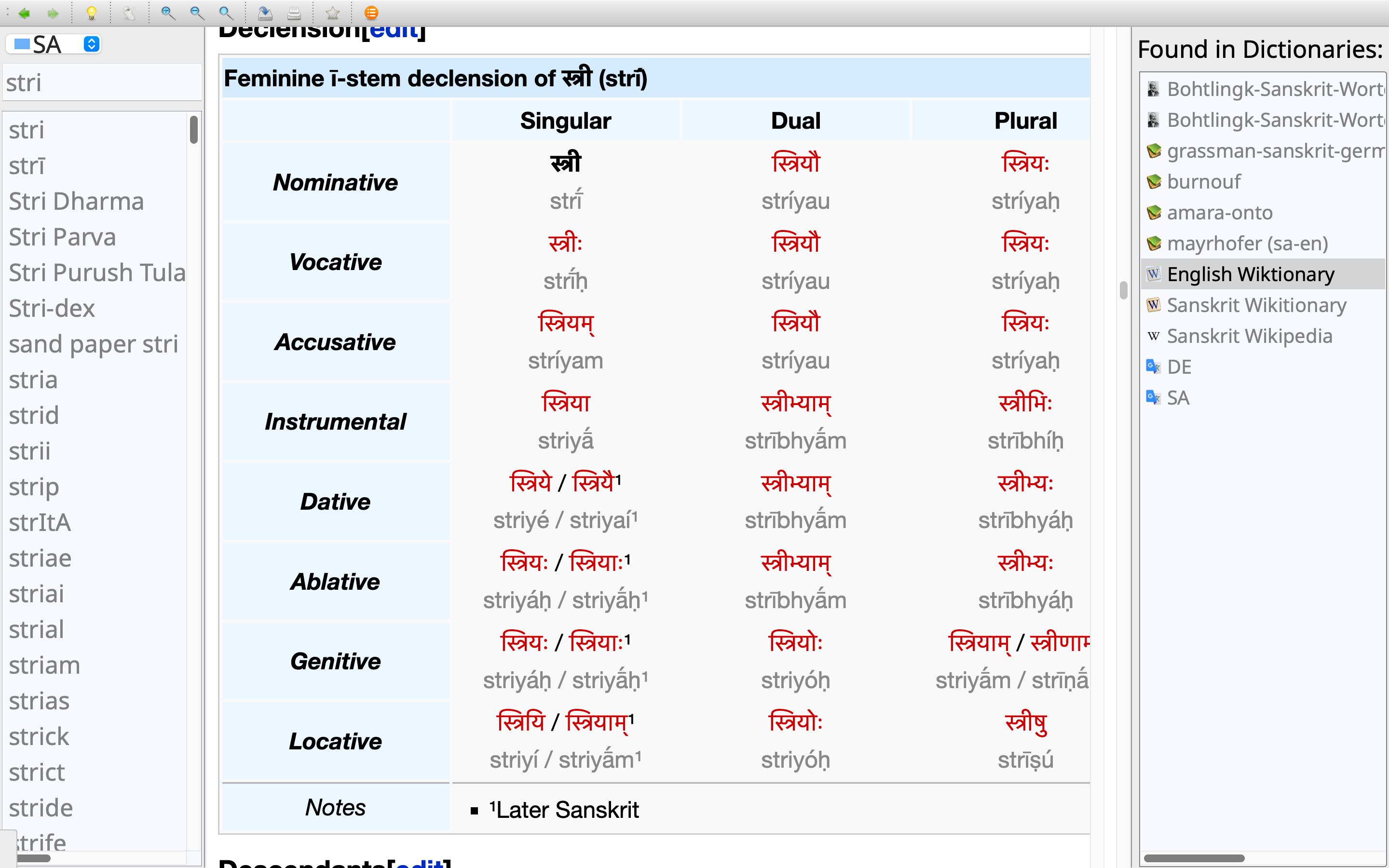
This is how it looks
Select a Sanskrit word anywhere and every dictionary in the group answers at once — Héritage du Sanskrit, Monier-Williams, Apte, the Böhtlingk–Roth, a Pali dictionary and more — together with full conjugation and declension tables.